How to Build a Custom Real-Time Image Upload Progress Bar in React and Tailwind
Introduction
Uploading images is something almost every modern web app needs—whether it’s social media, dashboards, or eCommerce platforms. But users don’t like waiting blindly while a file uploads. They want feedback, something visual, something real-time.
That’s exactly where a React image upload progress bar becomes important.
In this guide, you’ll learn how to build a real-time image upload system using React.js and Tailwind CSS that shows users exactly how much of their file has been uploaded. We’ll go step by step, from basic setup to advanced progress tracking using Axios and clean UI design.
We’re not just building a simple uploader. We’ll create a smooth experience where users can see upload percentage, progress animation, error handling, and success states—all in real time.
By the end, you’ll understand how to connect frontend state with upload events, how progress tracking works behind the scenes, and how to design a clean UI using Tailwind that feels modern and professional.
Let’s build something practical, real, and production-ready.
Understanding How Real-Time Upload Progress Works
What happens during file upload?
When you upload a file, your browser sends it to a server in small chunks. Instead of waiting for the full upload to finish, we can track how many bytes have been sent.
This is how real-time progress works.
To build a React image upload progress bar, we usually rely on tools like:
- Axios (for HTTP requests)
- XMLHttpRequest (native browser API)
- Backend API (Node.js, PHP, etc.)
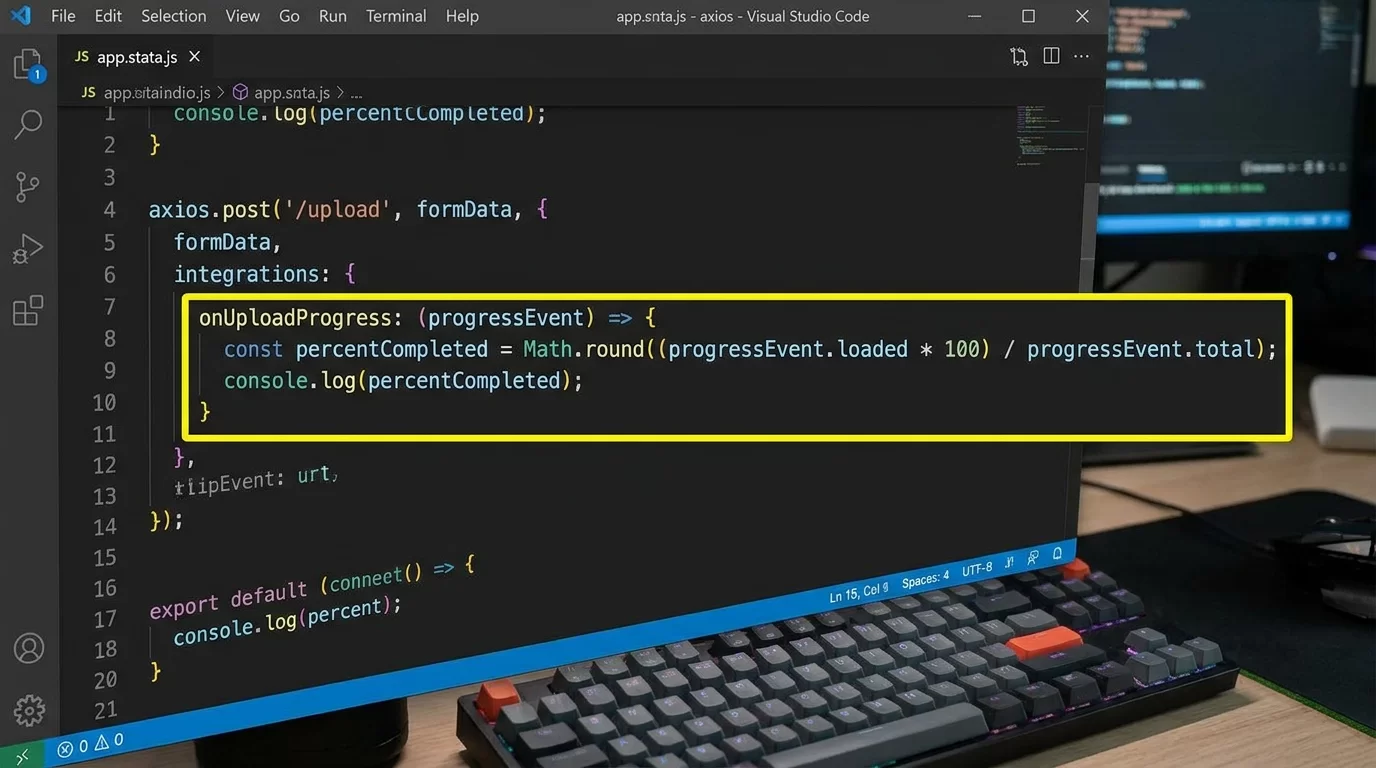
Axios is preferred because it provides a simple onUploadProgress event.
Why progress bars matter
Without a progress bar:
- Users think the app is stuck
- They may refresh the page
- Upload gets interrupted
With a progress bar:
- Users trust the system
- UX feels professional
- Conversion rates improve
Even simple apps feel premium when upload feedback is smooth.
Setting Up React + Tailwind Project
Step 1: Create React app
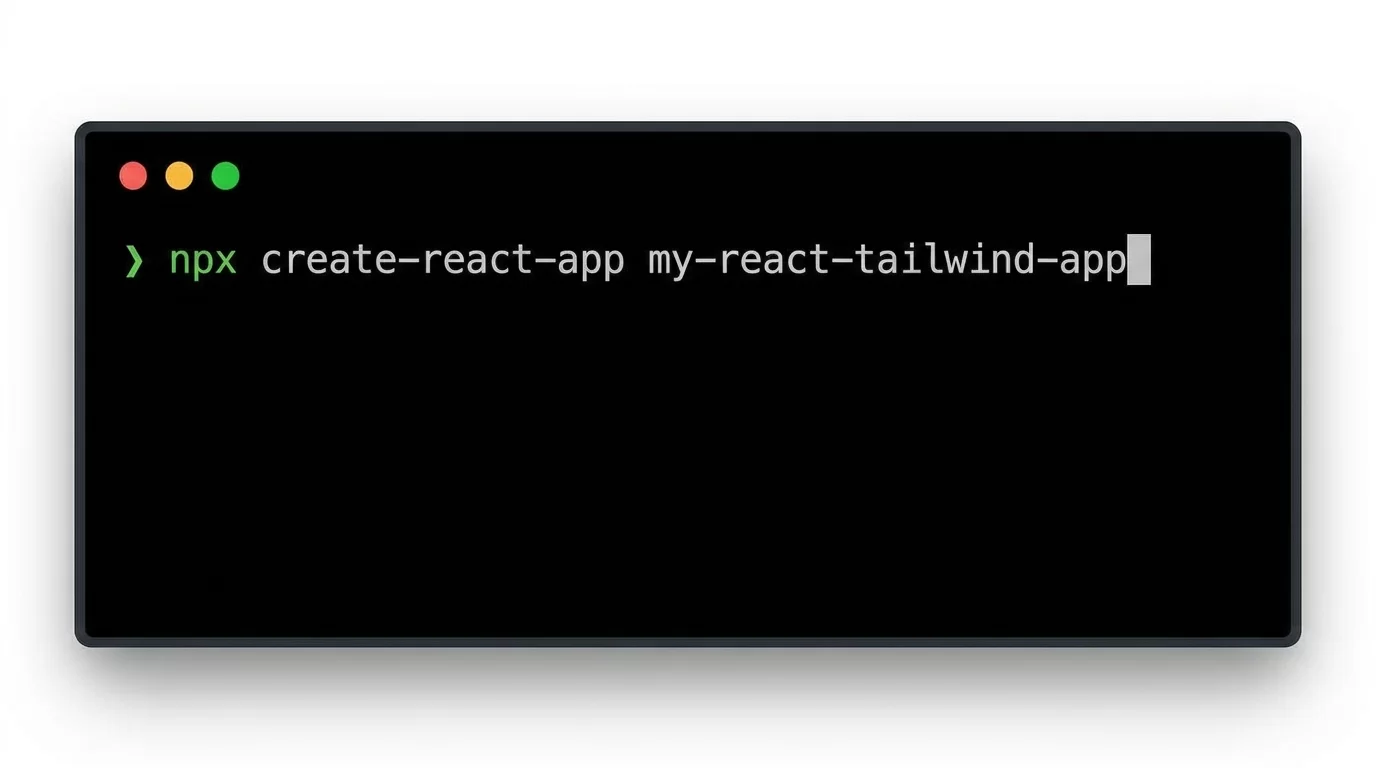
Run:
npx create-react-app image-uploader
cd image-uploader
npm start
Step 2: Install Tailwind CSS
npm install -D tailwindcss postcss autoprefixer
npx tailwindcss init -p
Configure tailwind.config.js:
content: ["./src/**/*.{js,jsx,ts,tsx}"],Add Tailwind to index.css:
@tailwind base;
@tailwind components;
@tailwind utilities;
Step 3: Install Axios
npm install axiosNow we are ready to build the upload system.
Building the Image Upload Component
File structure
Create:
components/ImageUploader.jsWe will manage:
- File selection
- Upload request
- Progress tracking
- UI updates
Basic UI layout
Here is a simple upload box:
export default function ImageUploader() {
  return (
    <div className="w-full max-w-md mx-auto mt-10 p-6 border rounded-xl shadow">
      <h2 className="text-xl font-semibold mb-4">
        Upload Your Image
      </h2>

      <input type="file" className="mb-4" />
    </div>
  );
}
This is our starting point.
Adding Real-Time Upload Logic
State management
We need React state:
import { useState } from "react";
import axios from "axios";
Then:
const [file, setFile] = useState(null);
const [progress, setProgress] = useState(0);
const [uploading, setUploading] = useState(false);
const [uploadedUrl, setUploadedUrl] = useState("");
Handling file selection
const handleFileChange = (e) => {
  setFile(e.target.files[0]);
};
Upload function with progress tracking
This is the core part of how to build real time upload progress bar react tailwind system.
const uploadImage = async () => {
  const formData = new FormData();
  formData.append("image", file);

  setUploading(true);

  try {
    const res = await axios.post(
      "https://your-api.com/upload",
      formData,
      {
        headers: {
          "Content-Type": "multipart/form-data",
        },
        onUploadProgress: (progressEvent) => {
          const percent = Math.round(
            (progressEvent.loaded * 100) /
            progressEvent.total
          );
          setProgress(percent);
        },
      }
    );

    setUploadedUrl(res.data.url);
  } catch (error) {
    console.log("Upload failed", error);
  }

  setUploading(false);
};
Creating the Progress Bar UI with Tailwind
Progress bar design
<div className="w-full bg-gray-200 rounded-full h-3 mt-4">
  <div
    className="bg-green-500 h-3 rounded-full transition-all duration-300"
    style={{ width: `${progress}%` }}
  ></div>
</div>
Percentage display
<p className="text-sm mt-2 text-gray-600">
  Uploading: {progress}%
</p>
This gives real-time feedback.
Full Working Component Example
import { useState } from "react";
import axios from "axios";

export default function ImageUploader() {
  const [file, setFile] = useState(null);
  const [progress, setProgress] = useState(0);
  const [uploading, setUploading] = useState(false);
  const [uploadedUrl, setUploadedUrl] = useState("");

  const handleFileChange = (e) => {
    setFile(e.target.files[0]);
  };

  const uploadImage = async () => {
    const formData = new FormData();
    formData.append("image", file);

    setUploading(true);

    try {
      const res = await axios.post(
        "https://your-api.com/upload",
        formData,
        {
          onUploadProgress: (progressEvent) => {
            const percent = Math.round(
              (progressEvent.loaded * 100) /
              progressEvent.total
            );
            setProgress(percent);
          },
        }
      );

      setUploadedUrl(res.data.url);
    } catch (err) {
      console.log(err);
    }

    setUploading(false);
  };

  return (
    <div className="max-w-md mx-auto mt-10 p-6 border rounded-xl shadow-lg">
      <h2 className="text-xl font-bold mb-4">
        Image Upload
      </h2>

      <input type="file" onChange={handleFileChange} />

      <button
        onClick={uploadImage}
        className="bg-blue-500 text-white px-4 py-2 rounded mt-4"
      >
        Upload
      </button>

      {uploading && (
        <>
          <div className="w-full bg-gray-200 rounded-full h-3 mt-4">
            <div
              className="bg-blue-500 h-3 rounded-full transition-all"
              style={{ width: `${progress}%` }}
            />
          </div>

          <p className="text-sm mt-2">{progress}% uploaded</p>
        </>
      )}

      {uploadedUrl && (
        <img
          src={uploadedUrl}
          alt="uploaded"
          className="mt-4 rounded"
        />
      )}
    </div>
  );
}
Pro Tips for Better Upload Experience
Building a smooth React image upload progress bar is not just about code—it’s about UX.
Here are some practical tips:
- Always disable upload button during upload
- Show loading spinner with progress
- Compress images before uploading
- Limit file size (e.g. 2MB or 5MB)
- Use drag & drop support
- Show preview before upload
- Add retry button for failed uploads
A small UI improvement can make your app feel like a premium product.
Common Mistakes to Avoid
Many beginners struggle while building upload systems.
Avoid these mistakes:
Not using onUploadProgress correctly
If you don’t attach it properly, progress will never update.
Forgetting FormData
Normal JSON cannot send files.
No error handling
If upload fails, user should know instantly.
Not validating files
Always check:
- File type (jpg, png)
- File size
- Empty selection
Blocking UI during upload
Never freeze the screen—keep it interactive.
Advanced Level: Making It Production Ready
Once your basic uploader works, you can upgrade it into a real system.
1. Chunked Uploads
Large files should be split into chunks:
- Upload in parts
- Reassemble on server
- Better reliability
2. Cloud Storage Integration
Instead of local server, use:
- AWS S3
- Cloudinary
- Firebase Storage
3. Parallel Upload Queue
Allow multiple images upload at once.
4. Cancel Upload Feature
Using Axios cancel tokens:
- Stop upload anytime
- Improve user control
5. Animated Progress UI
Instead of static bar:
- Add shimmer effect
- Smooth transitions
- Gradient progress fill
These upgrades turn a simple feature into a professional system used in real SaaS platforms.
FAQ Section
How does React track upload progress?
React itself doesn’t track upload progress directly. Instead, libraries like Axios use browser-level events such as onUploadProgress. These events report how many bytes have been uploaded so far. React simply updates the state based on this data and re-renders the UI to show a live progress bar.
Can I build upload progress without Axios?
Yes, you can use native XMLHttpRequest to track upload progress. It provides an upload.onprogress event. However, Axios simplifies the process and integrates better with React applications. For beginners, Axios is easier and more readable, while XHR offers more control for advanced developers.
How can I improve upload speed?
Upload speed depends on file size, network, and backend optimization. You can improve it by compressing images before upload, using CDN storage, enabling chunk uploads, and optimizing server response time. Reducing file resolution before sending also helps significantly.
Is Tailwind necessary for progress bars?
No, Tailwind is not required. You can use plain CSS or any UI framework. However, Tailwind makes styling faster and cleaner. It helps you build responsive and modern UI without writing long custom CSS files.
Can I upload multiple images with progress tracking?
Yes. You can loop through files and upload them individually or use parallel upload logic. Each file can have its own progress state. This requires managing an array of progress values instead of a single state.
Also Read